TRADELOOP

Tradeloop's Member Blog And News: Broadcasts

Promote Yourself

Does your company have a story that might interest our membership?

Let us know and you may see your name in print. We're looking for members to write case studies on. Contact us here.
Showing posts with label Broadcasts. Show all posts

Tuesday, December 21, 2010

A Picture Is Worth A Thousand Deals

Tradeloop's new Broadcast layout shows you who you're dealing with - literally. Now you'll see a member's photo next to his/her Broadcast message - but only if they've uploaded their photo to Tradeloop. Have you? Your picture on Tradeloop makes your Broadcast stand out and increases your credibility with other members.

In studies of online reading patterns, most readers focused first on pictures with human faces. And, as much as people like the wide selection and immediacy of the Web, they also like to deal with "real" people. Your photo attached to your Broadcast will help call attention to your content and increase your interactions with other Tradeloop users.

Uploading a photo is quick and easy. Just visit your profile page and follow the instructions. Photo upload requirements:
  • File type: For best results, we recommend one of the following formats: JPEG, GIF, or PNG.
  • Image size: 85 x 85 pixels
  • File size: 100k
You can delete your photo and/or upload a new photo at any time. Modify your privacy settings to set rules for who can - and can't - view your profile picture.

Ok, so your picture on Tradeloop may not be worth a thousand deals - but even if it attracts just one new customer, well, that's time well spent!

Tuesday, October 19, 2010

Buy & Sell With Just Your Trusted Network

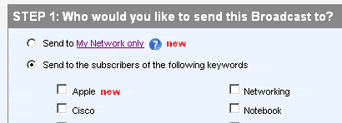
Tradeloop's "Send a Broadcast" page is now easier to use. In response to member suggestions, we modified the page layout slightly to help you select your "Send" options.

When creating a Broadcast, you can either send it to particular subscriber lists or create your own private Broadcasts for members of your Network only. Select either option by clicking on the appropriate radio button:

When you select the "Send to My Network only" option, the keyword checkboxes disappear. That eliminates confusion about whether you need to select both "My Network" and further narrow the recipients by keyword. Here's how the page section looks when you select the "My Network" option:

If you decide to send your Broadcast to particular keyword lists instead, just select that radio button and the checkboxes reappear.

Do you have any comments or suggestions about this Tradeloop feature - or any other features? Share them with us and other members here at the blog.

Thursday, September 30, 2010

Create A Private Broadcast List At Tradeloop

Send your Broadcasts to just your Trusted Network or even to individual dealers within your network with the new Broadcast option at Tradeloop. Use the "Send to My Network Only" option at the top of the "Send a Broadcast" page:


You can even send your Broadcast just to individuals in your Network. The Broadcast preview page lists all the members of your Network. Leave all boxes unchecked to send the Broadcast to your entire Network or click the checkbox to exclude one or more members.

For instance if your Broadcast is a WTB for a Dell part and some members of your Network only handle Compaq, you can check the boxes next to those names and exclude them from the Broadcast.

This new option is just one benefit of our new Connections system at Tradeloop. Have you started making Connections and creating your own trusted network of dealers? Now is the time to start: just ten approved Connections automatically enters you in our drawing for a free iPad!

Learn more at our official iPad Contest page or go directly to the Dealer Directory and start making Connections.

Thursday, September 23, 2010

Show Broadcasts From Just Your Trusted Network

Customize Tradeloop to show Broadcasts just from your Network and use the drill-down options to filter the results by message type, keywords, and geography. We've made it easy to search directly from the sidebar on the Broadcast page.

With just a few clicks, you can review all "Compaq WTS Broadcasts sent by your Trusted Network members in Europe" - or any other combination of search variables.

Here's a screenshot of the new side navigation bar on the Broadcast page.

My Network Only: Click on this link to view all Broadcasts from your Trusted Network. Then, use the options below to refine your search.

It's easy to start a new search: just click on the "Clear Filter" link at the top of the results lists.

We've made these search enhancements in response to Tradeloop member suggestions and comments. Tell us what you think about them here at the member blog.


Tuesday, September 21, 2010

New Broadcast Keywords - Share Your Suggestions!

Look for two new keywords when you send your next Tradeloop Broadcast. "Apple" and "Processors" are now Broadcast list options you can subscribe to - or send to.

We've changed the Broadcast system so we can easily add new keywords and we'll be adding even more over time. But we'd like some member input first. What new keywords would you like to see?

Share your opinions and suggestions with us here at the Tradeloop member blog.

Wednesday, September 15, 2010

Broadcast Just To Your Trusted Network On Tradeloop

Use Tradeloop's new "Send to My Network" Broadcast option to send your Broadcasts to the entire Tradeloop community or just to the trusted network you built using Tradeloop's Connections system.

The new Broadcast option is at the top of the "Send a Broadcast" page. Select the "Send to My Network only" radio button or scroll down on the page to select relevant subscriber lists for your Broadcast. You can even manage your connections from the Broadcast page. Just click on the "My Network only" link to view your approved Connections and view pending Connections.

Here's a screen shot from the Broadcast page:

Note that when you send a Broadcast to just your network, the message is only visible to people in your network!

You can even send messages just to individual members of your network. Once you enter your Broadcast text and go to the "Preview Broadcast" page, you'll see a list of your network members. By default, the Broadcast goes to all your network members, but you can exclude one or more members by checking the "Exclude" checkbox next to their name.

Now is the time to be making connections within Tradeloop and expanding your dealer network. If you make 10 approved connections before October 1, you could win a free iPad (get more details about the contest and the system's privacy options).

The Connections system lets you build your own network of trusted dealers and even restrict your Broadcast messages to just your network. Start building your network today.

Wednesday, August 25, 2010

Expand/Collapse Feature Added To Broadcast Page

The Broadcast page has a new option that allows you to quickly scan just the titles of Broadcasts or display all the content of each post. Use the "Show Full Text" checkbox to toggle the display on and off.

In the example image below, the checkbox and text are underlined in red:


Check the box to read the content of each Broadcast and uncheck the box to return to the default page display, which is a list of Broadcast titles.

The Broadcast section is one of the most active parts of Tradeloop: members are constantly posting both public and members only Broadcasts. Looking for a specific item? You can search the Broadcasts using the search box at the top of the page.

Remember though: we offer other tools and reports that also help you find the products you need quickly and easily:
We're continually upgrading the Tradeloop site and adding new features - often in response to suggestions from members. Share your ideas with us and other members here at the blog or contact Customer Service.

Thursday, August 19, 2010

Use The Ethics Process - Not Broadcasts - To Resolve Disputes

Last week, we had several incidents where Tradeloop members used the Broadcast system to disparage other members. This is a serious violation of our terms of service, so we want to remind everyone about the procedures in place to help resolve disputes and alert the community to fraud: the Ethics process and Fast Track Fraud Alerts.

Tradeloop's Ethics process is governed by our all-volunteer Ethics committee. They're a group of industry veterans who work with the parties involved in a dispute to help resolve it amicably. When that's not possible, the committee may take actions ranging from issuing a warning to banning a company from Tradeloop.

Members are required to participate in the Ethics process as a condition of their Tradeloop membership. Our committee members and staffers work hard to keep the process fair, transparent, and speedy. Once cases are resolved, members can review the details of posted cases and offer their own comments at the Ethics blog.

Until a case is decided and posted though, we keep the information private to protect the privacy and reputations of those involved. That's why we can't allow members to bypass the Ethics committee and use the Broadcast system to distribute disparaging information: it's not fair to the other company involved.

Fast Track Fraud Alerts are used to quickly warn the community when we get information that someone may be trying to defraud members - such as a case of identity theft. That situation is quite different than a dispute between two members over contract terms or product quality. Members submit Fraud Alert requests, which are reviewed by the Ethics committee before a warning message is sent.

We encourage everyone to use the Fast Track Fraud Alert form if they suspect fraud and to use the Ethics process to get help resolving a business dispute with another dealer.

Tuesday, August 17, 2010

Changes to the "Send a Broadcast" Page

We've changed two settings on the "Send a Broadcast" page to make it easier to send a Broadcast message.

Previously, many Tradeloop members created custom Broadcast signatures and used them on every Broadcast - IF they remembered to check the "Use Signature" box. So a member suggested a small modification: "Why not use the signature by default and ask members to unclick the check box if they don't want to include it?"

So we did. Now, when you send a Broadcast, the system will remember your signature settings and use them as the default on your next Broadcast.

Members will see another change on that same page as well. Only Trial Members have to click the checkbox to agree to the Broadcast terms:
This broadcast is not intended to solicit employees from other Tradeloop members. This broadcast is not offensive, harmful, or disparaging to anyone in any way.
Tradeloop members have already agreed to these terms as a condition of membership, so asking them to agree over and over was redundant.

We get many ideas for new features and site improvements from the Tradeloop community, so please keep sharing your ideas and concerns with us. Contact Customer Service with your suggestion or post it here for discussion at the member blog.

Thursday, August 5, 2010

Receive Tradeloop Broadcasts Via RSS Feeds

Most Tradeloop members subscribe to Broadcasts and have the information delivered to their email inboxes. Did you know that Tradeloop offers another option? RSS feeds. They're an easy way to quickly scroll through Broadcasts without opening your email client.

To subscribe to our Broadcast RSS feed, click on the Broadcast tab in the top navigation bar. The RSS feed links are in the left navigation bar. You can subscribe just to Public Broadcasts, Dealer Broadcasts, or all Tradeloop Broadcasts.

Click on the link for the Broadcasts you'd like to subscribe to and choose your RSS feed reader:

Note: if you aren't already using RSS feeds, you may have to install a plug-in for your browser or another application. Just search for "RSS feed readers" to find the one that works best for your needs.

Are you already using RSS to receive Broadcast information? Share your opinions here at the member blog.

Tuesday, July 6, 2010

New Searchbox Increases Usability at Tradeloop's Web Site

We've updated the search boxes at Tradeloop to make the search function easier to use and understand. The most noticeable change is that the search boxes are more prominent - displayed at the top of the home page, Broadcast page, Trading Floor, Ethics Case list, and other areas. They also offer helpful tips about search terms and keywords.

For instance, here's the Home page search box. It's the same as the Trading Floor search and reminds you that you can search on a number of different options:


The Broadcast search box invites you to enter either the Broadcast Subject or a term found in the body of the Broadcast message, whether it's a generic term like "laptop" or a specific part number.

And we recently added a search function to the posted Ethics cases. Because this is a relatively new feature, we've included some tooltips to help users understand the search function. Just click on the small blue dot with the question mark for an explanation of different search options:


The Tradeloop Dealer Directory also has a new search box with text to remind you that it's possible to search by company name, individual names, phone numbers, and many more keyword combinations.

We encourage you to visit the Tradeloop Web site and try the new search boxes. Do you think they're more useful and easy to understand? Are there some features and options that you think could benefit from additional tooltips? Let us know! Leave your comments and suggestions here at the member blog.

Wednesday, June 23, 2010

Who's Spamming the Broadcast Lists? And What Should We Do About It?

Last month, a Tradeloop member complained about being spammed after he signed up for the DEC product list. After receiving several Broadcast emails that were not about DEC equipment but had been sent to the DEC list, he contacted Customer Support to complain. Was it a Tradeloop system problem, perhaps?

NO.

In fact, we recently implemented a new feature - Broadcast filters - that helps members control the content delivered to their email inboxes. You can set a broadcast filter to monitor Broadcasts and send you just the WTS messages for a particular Compaq part number or the WTB HP messages from Europe or many other combinations of variables. (Learn more about Broadcast filters.)

However, some Tradeloop members prefer to watch the market on a broader basis. Instead of setting a filter to look for particular manufacturer part numbers, they subscribe to entire manufacturer or keyword lists. And unfortunately, they sometimes have to scroll through Broadcasts for totally unrelated products. That's because some Tradeloop members are sending Broadcasts to the wrong lists - whether intentionally or not - and it's a form of spam.

Do you think another member is spamming Broadcast lists? Check the bottom of the Broadcast message for the "Keyword" line. It lists the names of all the Broadcast lists that received the Broadcast. If the sender appears to be sending Broadcast messages to unrelated lists, you can alert Tradeloop to possible list spamming.

We need your input.
  • How should we define Broadcast spam?
  • How should we handle the worst offenders?
  • Is spamming the Broadcast lists a bannable offense?
  • Should we issue warnings and if so, how many and in what format?
Tradeloop members: please share your thoughts and opinions on this important community issue here at the member blog.

Friday, May 28, 2010

Use Broadcast Filters to Customize Your Tradeloop Broadcast Digest

Tradeloop members can opt to receive Broadcast emails in real time, several times per day, or daily. Now, the new Broadcast filters give you even more control over your inbox. Create personalized filters and receive just the Broadcasts you want, when you want them.

Previously, members could subscribe to particular Broadcast lists and then specify when they'd receive emails sent to the entire list. You could receive messages real-time or in digest form every few hours or daily but you still received all messages sent to that particular list. Now, you can set individual filters that are targeted to your business needs and receive only the Broadcasts you need.

For instance:
  1. You have an immediate need for 10 Compaq motherboards. Create a Broadcast filter that sends you those WTS Broadcasts in real time.
  2. You're always interested in lots of used Dell desktops to refurbish and watch the market for good deals. Create a Broadcast filter that sends you those Broadcasts every 6 hours.
  3. Your company is looking for new business contacts in Europe who buy/sell used memory. Create a Broadcast filter that watches specifically for those items in that geographic area and receive the Broadcasts on your schedule.
What do you do when you've found those 10 motherboards from example #1? Either delete the filter or make it "inactive." You can set up as many filters as you need and turn them on and off as business conditions require.

Learn more about Broadcast filters here at the blog and learn how to create them at our Broadcast Filter FAQ page.

Members: Have you tried the new Broadcast filters? Do you like the new system?

Share your comments here at the member blog.

Tuesday, May 25, 2010

New Broadcast Messages Provide More Information in an Easy-to-Read Format

With Tradeloop's new Broadcast email format it's easier to read messages on your mobile phone, scan your email inbox for a particular sender, access the message content - and more. We launched the new email format last week and are already getting feedback from Tradeloop members.

Important changes include:
  • Mobile phone accessibility: Broadcast emails now display in full size, making them easier to read on an iPhone or other mobile device.
  • Content on top: We eliminated the administrative information at the top of the message. Now, if your email reader uses a preview pane you can see the message content right at the top.
  • Broadcast filter name displays: The filter name displays at the top of the Broadcast so you can see exactly why you're receiving a particular Broadcast - such as "WTS Dell laptops in Europe." Learn more about Broadcast filters and how to set up your own custom filters.
  • See the sender name: Previously, all Broadcasts displayed the "From" address as "broadcast@tradeloop.com." Now, you see the actual sender's email address, making it easier for you to quickly scan your inbox and search for a particular sender.
  • Subject line now says "Tradeloop," followed by the rest of the subject. That's how you know it's a Tradeloop Broadcast message.
Note that you may want to adjust the filters in your email account. Some Tradeloop members had an email filter set up based on "broadcast@tradeloop.com" that sent Broadcast messages to a special folder. Now, instead of filtering based on sender, you may want to filter messages based on the "subject" line instead.

We've received comments and feedback already from some Tradeloop members. If you haven't commented yet, let us know what you think.

What do you think? Do you like the new message format or do you prefer the old format?

Share your opinions with our staff and with other Tradeloop members here at the member blog.

Friday, May 14, 2010

The Best Broadcasting System Just Got Better

Get more control over your email inbox. Enhanced Broadcast filters - Tradeloop's newest system upgrade - save you time by delivering more relevant, targeted leads directly to your email on the schedule you select.

Tradeloop members can set their own filters to completely customize your digest - instead of wading through a list of all the Broadcasts. Use our new "mix and match" filter options to set your preferences based on:
  • Manufacturer
  • Geographic Region
  • Product Keywords (ie "Lexmark printer")
  • Want to Sell or Want to Buy
  • Broadcast Type
  • And more….
You can also tell the Broadcast system you're on vacation and set a return date. This stops Broadcast delivery to you until the morning of your return date. It doesn't affect your Tradeloop membership, parts lists, or any other option pertaining to your account.

We transferred everyone's existing Broadcast settings into the new system, so no member is required to make any changes. However, this new tool offers so much power and flexibility that we strongly recommend you try it out.

You can edit or delete your filters at any time. We even give you the option to make a filter "inactive." That's useful for specific items you need on a sporadic basis. You can receive Broadcasts only when you're actively watching the market for that item.

Learn more about the new Broadcast filters at the Broadcast Filter FAQ page.

Back in December, we asked members what they wanted from the Broadcast system. Well, here it is. Tell us what you think! Post your comments and suggestions here at Tradeloop's member blog.

Tuesday, March 23, 2010

Broadcast Options Help You Manage Your Email Inbox

The "spam filter" option on the "Manage Broadcasts" page allows you to control the number of Broadcasts you receive per day from individual Tradeloop members. Click on the "Filter SPAM" link at the top of the page and select the number of Broadcasts you'd like to receive from each seller per day.

Select any number between 1 and 99 or place no limit on the number of messages using the "all" option.

Note that this option doesn't limit the total number of Broadcasts you'll receive each day. It only limits the number of Broadcasts you'll receive from individual members. Set other Broadcast filter options on your "Manage Broadcasts" page. You can also elect to receive a digest of all Broadcast activity on Tradeloop or subscribe to Broadcasts for certain manufacturers and/or geographic areas.

Friday, February 12, 2010

Custom Broadcast Signature Bug Is Fixed!

Several Tradeloop members recently reported a bug in our custom Broadcast signature feature. Members said they could create a custom Broadcast signature, save it, and send a Broadcast with no problem. But when they re-visited the Broadcast page, the custom signature content was gone.

Our intrepid technical staff tracked down the bug and quickly fixed the problem.

Remember that a custom signature is a great way to personalize your Broadcast messages and publicize your company. It takes just a few minutes to create a signature message that encourages communication and promotes your company's products and services.

Many thanks to those members who noticed the bug and took the time to contact us about it. We encourage members to contact Tradeloop with their questions, comments, or suggestions for making our service even better.

Monday, October 26, 2009

Help Us Redesign Tradeloop's Broadcast System

We're about to redesign Tradeloop's Broadcast System and we'd like your input. We have a number of suggestions from members already, but we'd love to hear more about what Tradeloop members want and need from Broadcasts.

Some suggestions we've already received include:
  • Block User option that will allow you to block users who are spamming the Broadcast lists.
  • Keyword tagging - add any manufacturer name you want to your Broadcast.
  • Allow End Users to post simple WTS/WTB requests. But they still won't be able to access any wholesale pricing or dealer contact information!
  • Larger "Manufacturer" list to make it easier to target Broadcasts and generate more precise WTS/WTB Broadcasts.
  • Option to block specific users from searching a company's inventory list.
  • Ratings system
  • Better lead generation that makes it easier for dealers to sell to End Users.
Our staff members are already at work on some of these, but we'd like to hear more about what you like/dislike about the Broadcast system - and welcome all suggestions for new options and functions!

For instance, one of our most recent additions to the "Send a Broadcast" option was the ability to add a custom signature line to your Broadcast. That very popular change began with a suggestion from a Tradeloop member who wanted the ability to personalize his Broadcast messages.

The Broadcast system is one of the most valuable parts of your Tradeloop membership because it helps you locate dealers who have an immediate need to buy/sell particular products. The Broadcast system upgrade will be a major project through the end of the year, so please send in your suggestions! Contact us by email, phone, Live Chat, or just comment here at the blog.

Thursday, September 17, 2009

Share Public Broadcasts With Your Social Networks

Want more attention for your public Broadcasts? We've added a new application that makes it easier to email your Broadcasts or share them with social networking sites like Twitter, LinkedIn, Facebook, and Digg. Of course, you aren't limited to sharing just your own Broadcasts; if you see a great deal, you can use this application to alert others to it.

Look for the "Recommend This Deal" link at the bottom of every public Broadcast. When you click on it, a popup box opens. It contains a number of links for various social networking services. There are approximately 50 sites and services to choose from, including:
  • Send a text message or email
  • Post to Facebook or MySpace
  • Add to your personal blog
  • Recommend it through Digg
  • Send an instant message
Here's how it looks:
This is very straightforward and easy to use.

When you click on the Facebook link, for instance, you'll be prompted to log into your Facebook account, if you aren't already. Then, you can make a comment about the Broadcast and post it on your Facebook account. If you want to send an email, text message, or IM, you're prompted to enter the recipients contact information and a short comment. It just takes a minute, and you have all the social networking information available in one place.

Note that this feature is only available on public Broadcasts. Tradeloop's Dealer Only Broadcasts are restricted to our wholesale members. That helps protect the integrity of the wholesale market. But most Tradeloop members send public Broadcasts when they want to get a lot of attention to the deal they're offering. Our new "Recommend this Deal" feature makes that task even easier.

Monday, September 14, 2009

Tradeloop's On Twitter - And So Are Your Public Broadcasts.

Tradeloop has a Twitter account: http://twitter.com/tradeloop and we're posting all "public" Broadcasts to Twitter. Our Twitter feed gives more exposure to our members' public Broadcasts.

Remember that "Dealer Only" Broadcasts are available to Tradeloop's wholesale members exclusively. If you want any information about your Broadcasts to be available to search engines, end users, and non-members, you need to select the "public" option when sending a Broadcast.

If you have your own Twitter account, you can "re-tweet" Broadcasts that appear on Tradeloop's Twitter account. Just copy Tradeloop's Twitter post and paste it into your own Twitter feed. Most Twitter users identify the source using a shorthand notation like "RT @Tradeloop" or "via Tradeloop" when they re-tweet a post

Twitter is a quick and easy way to send brief messages and we invite all Tradeloop members to follow us on Twitter. Social media tools are quickly becoming less of a "social" pastime than an important marketing strategy that helps businesses publicize products and services to the online community.

We'll soon be announcing even more opportunities for you to use social media and network applications to promote your business through Tradeloop.