TRADELOOP

Tradeloop's Member Blog And News: Search History

Promote Yourself

Does your company have a story that might interest our membership?

Let us know and you may see your name in print. We're looking for members to write case studies on. Contact us here.
Showing posts with label Search History. Show all posts

Wednesday, July 21, 2010

Upload Unlimited Inventory With A Standard Membership

Tradeloop's Trading Floor is more than a list of parts for sale. Use the information contained in the Trading Floor database to make pricing decisions, see who is searching on your inventory, and see a list of the most popular searches. All Tradeloop standard members can upload an unlimited number of parts and offer them for sale at Tradeloop.

Uploading is easy. You can either enter parts individually (which works for a small number of items) or upload a list of hundreds, perhaps thousands, of parts using a comma-delimited (.csv) file. Complete instructions for uploading are at the Tradeloop Web site.

We encourage all Tradeloop members to upload their inventory lists and use the Trading Floor to locate items and research the wholesale market.
  • Tradeloop's Search History reports use the Trading Floor information to determine the most popular searches and tell you who has been searching on your listings.
  • The Price History reports help you track price fluctuations over time. You can see the high, low, and average wholesale prices for individual part numbers. To view a parts price history, go to the Trading Floor, enter the part number, and click on the part number link to see a price history report on that item.

Remember, Tradeloop Standard members can upload an unlimited number of inventory items to the Trading Floor. We've recently updated the search results display to prevent end users from seeing any portion of dealer-only results. Learn more about how to upload your inventory list or contact us at Tradeloop for help.

Wednesday, February 10, 2010

Standard Search Boxes Make It Easier to Search for Dealers, Parts, & More

We've created a unified theme for the search boxes on the Tradeloop Web site. Now, search boxes on the home page, Broadcast page, Trading Floor, and Dealer Directory are all located in the same place with the same layout.

Previously, all these pages used search boxes, but the boxes were displayed in different places on the page and presented in a variety of shapes and sizes. We know that our members need the ability to search for a particular part number or dealer. But few want to spend time searching the page just to find the search box!

The search box is now located directly under the main menu. Here's how it looks on the Tradeloop home page:


In addition to the basic search function, we've previously implemented a number of other search tools to help you quickly find the products you're interested in and/or determine who's buying or selling them.
The new, unified search theme makes the search process quicker and easier, while Tradeloop's other search options help you monitor the market, set pricing, and quickly locate hard to find items.

Tuesday, January 12, 2010

Better Results & Sales Leads From Search Queries & Reports

We've added a new filter option to the "Recent Searches" and "Top Searches" results pages that increases the relevance of the results display. It also generates better search reports for sellers. This should make it even easier for searchers to find the parts they need and give sellers more useful, targeted sales leads.

Previously, if someone searched on a generic term like "duo," the query returned thousands of results. No doubt, the exact part the searcher needed was in that list, but who had the time to comb through the results to find it? Sellers faced a similar problem when looking at search reports. It was time-consuming to decide what was a good sales lead and what wasn't.

The new search query filters out any match that returns "excessive" results - approximately 200 or more. That means the searcher might review several dozen results that are relevant instead of several hundred that aren't. And a seller who receives "Saved Search" alerts will also receive more consistent and useful reports.

Of course, you may prefer to view all the results. We give you that option on both the "Top Searches" and "Recent Searches" reports. It's an option titled "Hide Excessive Results" and displays just above the search results. The default is set to "Yes," but you can see all results by clicking on the down arrow to the right and selecting "No."

In this screen shot, the new option is underlined in red:


This new option, combined with the other filter options, should help you quickly determine the demand for parts. That helps sellers price parts appropriately and locate buyers more easily. Other filter options include:
  • Filter by Top Searches or Recent Searches.
  • Search All Tradeloop, your company's parts, or just your own inventory list
  • View searches by Everyone, End Users only, Public users only, Dealers only, or both Dealers and End Users.
  • Filter by time period ranging from 1 hour to the past 30 days.
Tradeloop is a valuable business tool because it helps match buyers and sellers and our new search filters help streamline the matchmaking task. They save you time and help you connect with buyers who are searching for your products.

Wednesday, October 14, 2009

Search History Upgrade Adds "End Users" To Search Filter

Tradeloop's search tools help members monitor and research the market. You can see who's searching on your inventory, the most popular searches, most recent searches, and more.Our latest upgrade gives you yet another option: members can see who was searching and limit the results to dealers, registered end-users, or public searchers.

See how easy it is to use. The Search History text link is located underneath the main menu. It takes you to the main Search History page. Select one of the four options. The filters appear at the top of the results page:


This new option lets you customize your search to match your business objectives. Members who only operate in the wholesale market can filter out results from end user searches. Other members who do both wholesale and retail can quickly generate separate reports for each market.

Learn more about the Search History function and how to use Saved Search. They're both valuable features that help you quickly locate buyers and sellers on Tradeloop. Use Search History to see what both wholesale and retail buyers are looking for and let the Saved Search report help you find what you need!

Thursday, June 18, 2009

Trading Floor Upgrades Help Tradeloop Members With Market Research, Pricing, and More

Want to search for a particular part, description, manufacturer, perform market research, track price fluctuations, or find out who's searching for what at Tradeloop? You can do all that and more from Tradeloop's Trading Floor. We've spent the first half of 2009 adding features, search queries, and other new options that make it easy to find the information you need.

The most recent change to the Trading Floor and search function is the option to sort results by either manufacturer name or product description. These used to be contained in the same field, which made sorting difficult. Other sort options include: date, vendor, country, part number, condition, quantity, and price.

There's even more information available on the search results page:
  1. Recent Searches - See who's been performing the same search, and filter results by date range, Tradeloop members, public users, and receive a notice when someone searches on a particular item. Learn more about the Search History function.
  2. Save Search and Alert Me - We'll notify you when items matching your search term are posted at Tradeloop. Learn more about how to use Saved Search.
  3. Price History - See seasonal price fluctuations for particular parts, broken out by high, low, and average wholesale and retail pricing. Learn more about Price History data.
These new features are part of our commitment to making Tradeloop the most valuable Web resource for our members. Your membership already gives you the opportunity to safely connect with other dealers worldwide - a group that has passed our rigorous member screening process.

Tradeloop is more than a great place to do business; it's also a market research, pricing, and business tracking tool.

Friday, May 15, 2009

Saved Search: Let Tradeloop Watch The Market For You

Never miss out on a hard-to-find item again! Tradeloop's new Saved Search feature automatically notifies you by email when someone uploads a part that matches your saved search.

This feature replaces the old "Email Alerts" system which used to match "Want to Buy" lists to "Want to Sell" lists. The new system is much more efficient and easy to use.

For instance, suppose you've purchased some refurbished Sony VAIO laptops and need 30 replacement batteries for them. A search on part number "DR5472" returns two results with a total of 16 batteries available. You still need more, so save your search by clicking on the "Save this search and Alert Me" link underneath the search bar.

You'll be prompted to give your search a descriptive name. Once you save the query, we'll send you a notification email each time someone uploads that part. Search for a dozen parts or just one. Each part has its own Saved Search name and report.

You can modify or delete your saved searches at any time just by going your "Account Information" page and selecting the "Email Center" link. From there, select the "Your Saved Search Alerts" option in the right-hand column. It takes you to your "Saved Search" report where you can change or delete saved searches.

As you use the Saved Search feature to find the parts you need, remember that Tradeloop members can also receive alerts when someone else is searching for a particular part. Use the Search History feature to find new buyers or as a market research tool.

Both features help you avoid time-consuming searches for buyers and sellers. Use the Search History to see what buyers are looking for, and let the Saved Search report help you find what you need!

Monday, May 4, 2009

Manage Emails, Broadcasts, and More at Our New Email Center

We've made it more convenient for members to manage emails, set email preferences, monitor search history, and see who is viewing their inventory. The new Email Center offers all these options and more in one place.

The Email Center is easy to access and navigate. Just log into your Tradeloop account and click on the "Email Center" link on your Member Home Page. It's divided into two sections: "Email Administration" and "Email Alerts and Reports."

The Email Administration section allows you to:
· Edit the email address associated with your login or add another user to your account.
· Set email opt out preferences for marketing emails, parts deletion reminders, and other options.
· Review the Tradeloop privacy policy.
· Check your bounce history. An excessive number of bounces will result in account suspension, so check to see if our system thinks your email address is bouncing.

The Email Alerts and Reports section contains these account management options:
· Manage your Broadcasts by setting filters, delivery preferences, and more.
· Saved search alerts notify you when another dealer posts a part you're searching for.
· Searches matching your inventory report alerts you when someone searches for a part in your inventory. Learn more about this market research tool.
· End user impressions and clicks is a report associated with the End User program. Track who's searching and clicking on your public items.

Many of these options have been available to members for a long time. The Email Center format just brings them together in one place, saving you time and making account administration easier.

Sunday, March 22, 2009

Search History – New Market Research Tool Launched

Tradeloop's new Search History report page is a valuable market research tool. The versatile options help you find just the information you need - when you need it! Mix and match the sort options to see all searches by dealers on your inventory within the past 7 days, all searches by public users within the past hour, or any other combination that makes sense for your search.

The Search History reports are easy to find: access them from the Trading Floor page. The Search History text link is located underneath the main menu, and it takes you to the main Search History page that contains four report options:
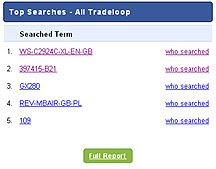
1. Top searches on Tradeloop: The top five part number searches are displayed. Click on the part number to see which Tradeloop members have inventory. Click on the "who searched" link to see a report listing the date, search term, searcher's identity, and the number of results the search returned.

Alternatively, from the main Search History page, you can click on "Full Report" to see a list of the top 100 searches on Tradeloop.
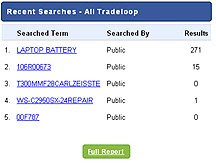
2. Recent searches on Tradeloop: The five most recent searches are displayed, along with the identity of the searcher, and the number of results returned by the search. Clicking on the "Full Report" option gives you a list of recent searches by date, search term, searcher, and number of results returned.

3. Top searches on your company's parts. Uses the same format as the top searches on Tradeloop report, but only for parts in your company's inventory list.

4. Recent searches on your company's parts. The same format as the recent searches on Tradeloop report, but it returns results only for parts in your company's inventory list.

Each report contains a number of sort options and date ranges. For instance, you can limit the results to "Dealers only," "Public only," or "Dealers and Public" searchers. Date ranges are all searches within 7 days, 1 day, or one hour.

The new reports benefit both buyers and sellers by making it easier to match buyers looking for particular items with with sellers who have inventory. Dealers can monitor the market, see who's searching on their parts, and accurately price inventory based on supply and demand.

Get up-to-date information about searches matching your inventory by setting your email preferences to receive search reports hourly, every three hours, or daily. Just go to your Account page, click on "Email Preferences," select the "Matching Inventory" report and select your preference. You'll immediately begin to receive email reports. You can stop the emails at any time just by unclicking the check box.

We encourage all members to visit the Search History page and become familiar with the search functions and options. We think you'll be amazed by the amount of helpful market information contained in these simple, easy-to-understand reports.